
When an external speaker is not around, the majority of us use media players like VLC or GOM on our computers simply to use their ability of boosting the sound of the video clip or song playing on Windows.
Nevertheless, that option is only limited to the file saved money on our computer system. What regarding the songs that we stream on Spotify or the videos we play on YouTube?
These days, we google most of the music or videos we play through online streaming, we shall show you two ways you can use sound boosters to increase the volume of the sound output across all the programs on Windows (games, browser, music players).
1. Enable Loudness Equalization in Realtek Drivers
This trick has been tested on the Realtek drivers. Hopefully, it should work on other sound drivers too but we can’t guarantee that. Also, before you continue, if you are using Realtek drivers, please update them to the latest version and restart your computer.
If you do not have the Realtek drivers or have not updated the software if you have it, you can download the latest version from www.realtek.com/downloads.
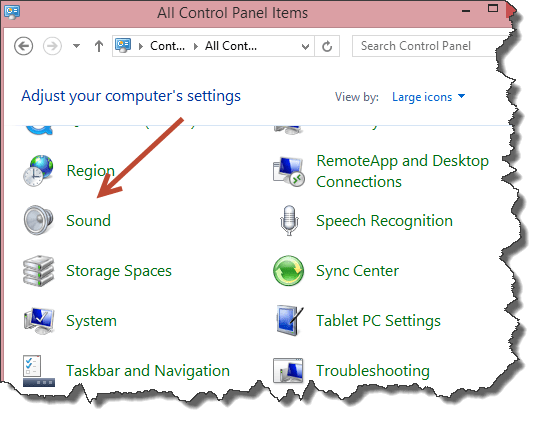
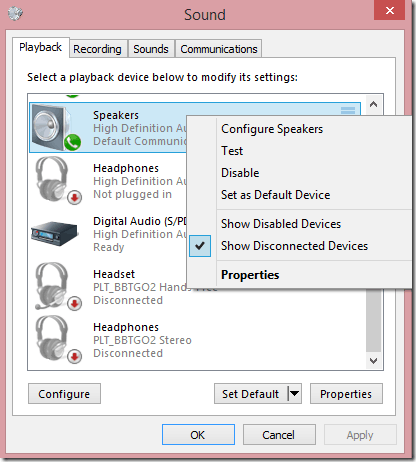
Having done that, open Control Panel and click on the Sound icon. Make sure you are viewing the settings in icon view and not in category view.
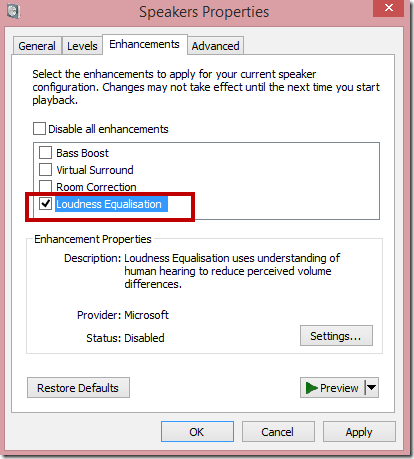
In Speakers properties, navigate to the Enhancements tab and check the option Loudness Equalization. After you enable the option, you will notice that there will be an boost sound to the maximum volume of the speakers and it will be around 150% when compared to the old volume output.
I understand that not all users might find the settings on their respective computers and that’s where you can use DFX Audio Enhancer in Microsoft Windows.
Using Sound Booster Plugins
Second method is to use sound booster plugins. This is the most reliable and exciting option. But the problem is that there are not many free sound booster plugins available which have many options available for free. But we will list down a few plugins which can be used for boosting the overall volume of the system.
Audio Enhancer Bongiovi DPS Plugin

This is a commercial plugin but you can test it out using the trial version. It supports a lot of sound enhancement and equalization options. Bongiovi DPS plugin is available for Windows 7, Windows 8 and Windows 8.1. It also support Max OSX.
DFX Audio Enhancer Plugin
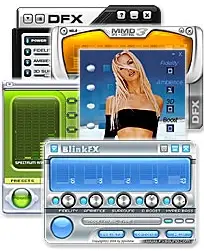
DFX Audio Enhancer is my favorite tool for enhancing the system volume on my system. DFX Audio Enhancer boosts the sound quality of audio playback of the overall system which includes your music, videos, Internet audio, games and other programs. This plugin comes with a free edition which has most of the configuration options disabled but it will be enough for a basic sound boost on your system.
SoundPimp
SoundPimp audio enhancer with High Definition Stereo enhances the overall listening experience of computer audio. I have not used SoundPimp but it seems good because it is available for all platforms including Windows, Mac OS and Linux.
Using VLC Player
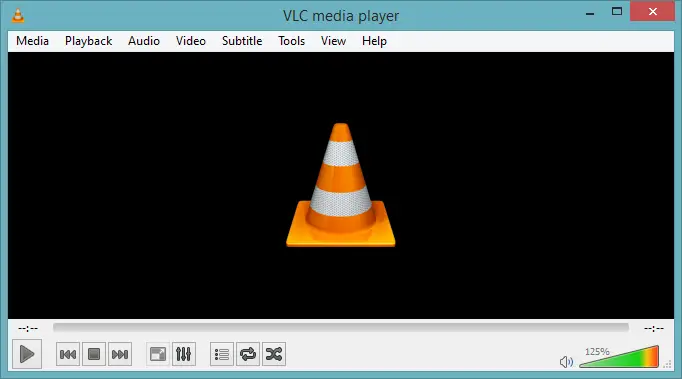
If you only want to make your multimedia audio and video louder then you can use multimedia players which let you go beyond the 100% volume limit. One option is VLC Player which lets you increase the volume up to 125%.