
Our smartphone’s battery takes a heavy beating every day, considering how rarely most of us switch off our mobiles. For the majority of phone users today, calling someone on the phone is usually an afterthought, with most of the time spent using one app or the other to play games, surf the ‘Net, or use any of the millions of apps that are flooding the market.

Towards More Efficient Apps Usage
The more heavy-duty apps you use, the more battery is consumed by your phone. This can be a serious problem if you happen to be in a place where phone charging options are restricted. The “Standby Apps” feature, also referred to as “App Standby Buckets,” is designed to create different categories of apps on your mobile. The access to your phone’s battery and data resources is limited based on how often or how rarely you use those apps. There are five basic categories you can place your app under:
Active: The apps that you use the most often, on a daily basis. These are the apps that will have access to maximum battery life and CPU memory. They are allowed to function fully according to their default settings.
Working Set: These are the apps that are not used as frequently, but which are still used regularly enough. Medium-level restrictions are placed on such apps, restricting their ability to run jobs or trigger alarms.
Frequent: The apps that are used infrequently. Along with greater restrictions, a cap is imposed on high-priority FCM services.
Rare: These are the kind of apps that people put in their phone and then forget about for long periods and have heavy restrictions placed on them. A limit is placed on such apps’ ability to connect to the Internet, along with severely restricting their ability to run jobs, trigger alarms and receive high-priority FCM messages.
Never: The apps that you never use but which you never got around to uninstalling from your phone. You may not use these apps very often, but they are taking up memory space on your phone and consuming battery life while they operate unseen in the background. These are subject to the most severe restrictions to stop them from needlessly sucking up your phone’s battery.
Note that some phone models carry a “Never” category for standby mode, while others only carry the previous four.
Using the “Standby Apps” Feature
Here are the steps to using the Standby Apps feature to categorize your apps:
1. Go to “Settings” on your phone.
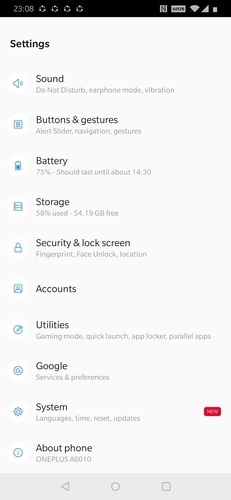
2. Tap on the “About Phone” option.
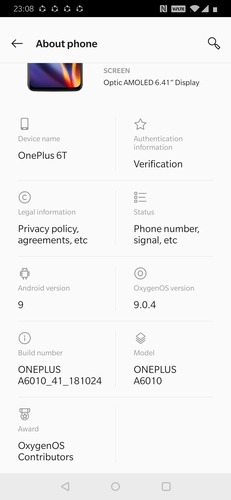
3. Near the bottom you will find the “Build” icon which does not respond to a single tap. Tap on “Build” seven times to enter developer mode.
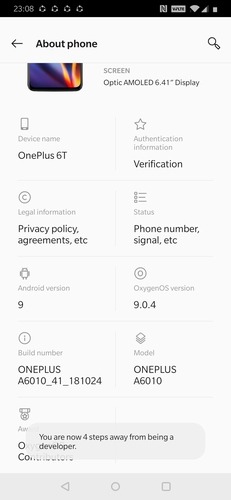
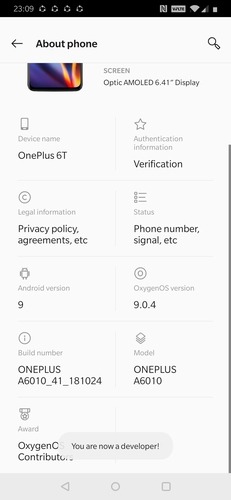
4. Scroll down through the Developer options until you reach the “Standby Apps” option and click on it.
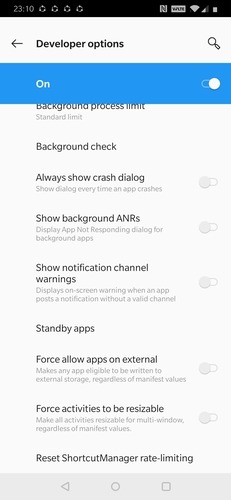
5. You will find a list of all the apps currently installed and operational on your phone. Tap on the apps from the list and place them in different categories based on how often you use them.
6. Repeat the process for every app. Restart the phone for the changes to take effect.
Conclusion
With the help of the Standby Apps feature, you can ensure that the least useful apps on your phone are not competing for the same resources as your most useful apps. This will, in turn, reduce the strain on your phone’s battery, ensuring fewer recharging cycles and longer battery life.