
With its user-friendly interface and so many advance features, Google Chrome is the most prominent Web Browser.
Even though its competitor, the Edge browser comes by default installed in the Windows operating system, the users prefer Chrome over Edge in Windows. It has by far the highest user base of about 70% of the total Global Market Share.
One of the reasons, it is hugely popular is because of its simplicity. It is available for every device and operating system.
Even though it is highly popularized, there are some secret settings, which can be tweaked to improve privacy and enhance the web browsing experience.
(1) Parental Control
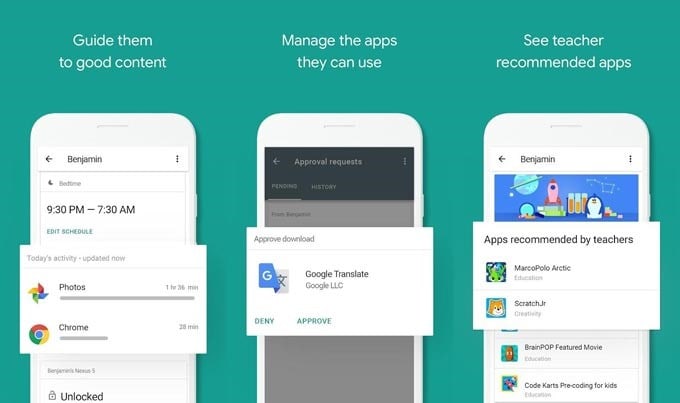
With the world becoming digital, children have started handling the internet at a very tender age. If you are a parent and worried about where your child is spending his online time, Chrome has presented a great way of tracking it.
Chrome provides a way for parents to keep track of their child’s online activity. Parents can manage the sites which their child can access. They can also check on which sites their children spend most of their time.
Parents who want to do this need to set up a Google Family Link. It is an application to monitor the web and application usage across various Google accounts and devices. Previously this could be done by Chrome’s settings known as Supervised Accounts.
(2) Ad Blocks (Without Website Prompting you to Unblock them!)
It is a fact that blogs and other websites today are full of advertisements. It is also a fact that most of the people are using various adblockers to block annoying ads.
But you might have noticed that several websites can now detect your adblocker and then push you to turn it off for their website before moving ahead. It is because they can identify your adblocker using JavaScript.
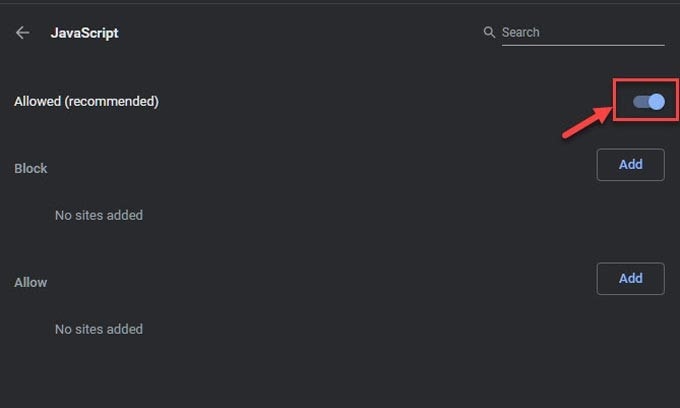
You can get rid of this by disabling the JavaScript for that particular website. Yes, Chrome provides you with this option. Just copy and paste this on Chrome’s search bar: chrome://settings/content/javascript
With its user-friendly interface and so many advance features, Google Chrome is the most prominent Web Browser.
Even though its competitor, the Edge browser comes by default installed in the Windows operating system, the users prefer Chrome over Edge in Windows. It has by far the highest user base of about 70% of the total Global Market Share.
One of the reasons, it is hugely popular is because of its simplicity. It is available for every device and operating system.
Even though it is highly popularized, there are some secret settings, which can be tweaked to improve privacy and enhance the web browsing experience.
(1) Parental Control
With the world becoming digital, children have started handling the internet at a very tender age. If you are a parent and worried about where your child is spending his online time, Chrome has presented a great way of tracking it.
Chrome provides a way for parents to keep track of their child’s online activity. Parents can manage the sites which their child can access. They can also check on which sites their children spend most of their time.
Parents who want to do this need to set up a Google Family Link. It is an application to monitor the web and application usage across various Google accounts and devices. Previously this could be done by Chrome’s settings known as Supervised Accounts.
(2) Ad Blocks (Without Website Prompting you to Unblock them!)
It is a fact that blogs and other websites today are full of advertisements. It is also a fact that most of the people are using various adblockers to block annoying ads.
But you might have noticed that several websites can now detect your adblocker and then push you to turn it off for their website before moving ahead. It is because they can identify your adblocker using JavaScript.
You can get rid of this by disabling the JavaScript for that particular website. Yes, Chrome provides you with this option. Just copy and paste this on Chrome’s search bar: chrome://settings/content/javascript
You will find an option to disable JavaScript. However, you have to keep a thing in mind that many websites need JavaScript to run properly.
(3) Access your Passwords
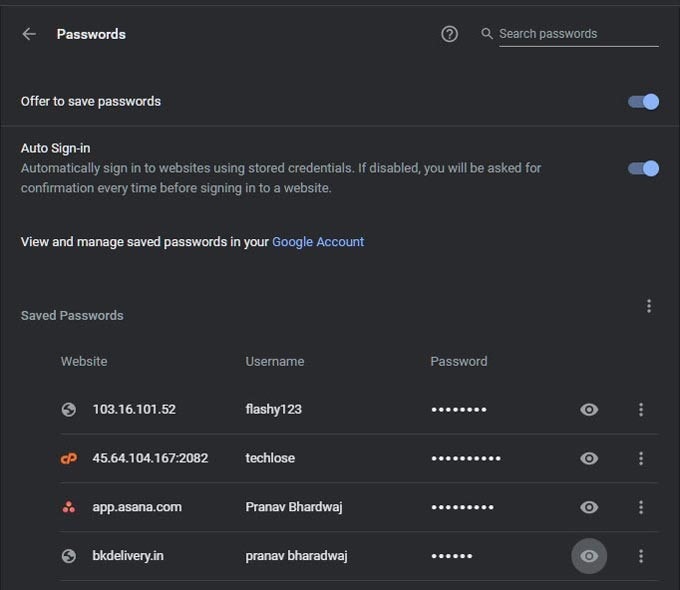
You don’t need to buy any password vault to save your passwords. Google has its own password manager, which can be accessed through Chrome. This feature is quite handy when you fill new forms on Google Chrome.
With your permission, it will save the credentials for future use. You don’t have to fill the username and password every time you visit that site. Use this: chrome://settings/passwords on Chrome’s search bar.
(4) Manage Search Engine
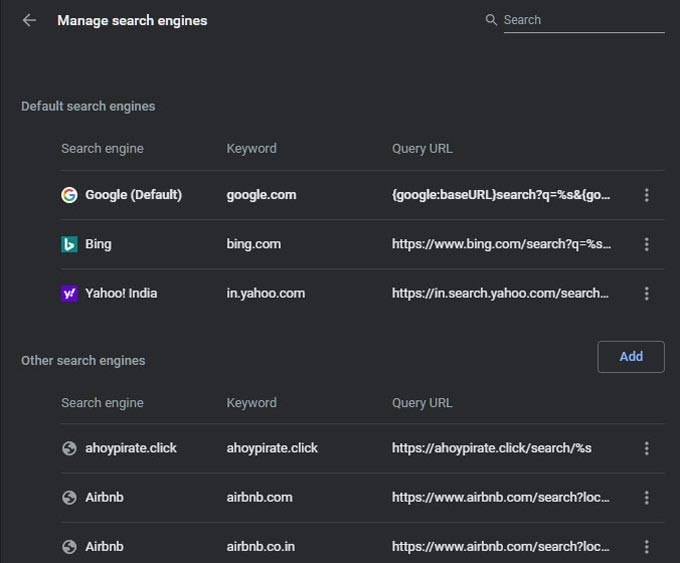
Chrome obviously comes with Google as a default search engine. However, it can’t force you to use only Google. You can use other search engines too and make them the default search engine.
You can also set which search engine to use when you enter any search query on Chrome’s search bar also known as Omnibox.
Just visit chrome://settings/passwords for search engine configuration.
(5) Block Camera, Mic, and Location
For an internet user, day by day privacy concerns is increasing rapidly. You might have seen many people covering the webcam and microphone of their devices with tape. They do so because of a fear that someone is spying on them.
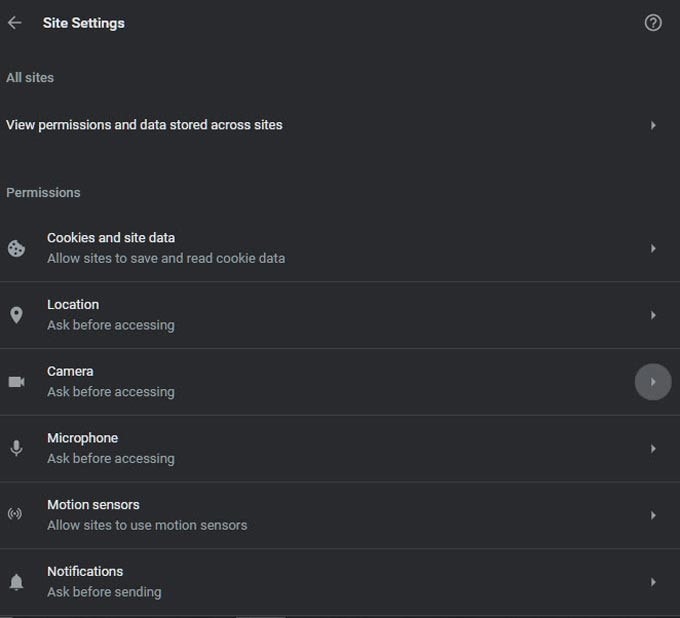
However, Chrome users have an option to block webcam, microphone, location, and other things that could collect their information.
For doing so just copy and paste: chrome://settings/content on the search bar of Chrome. It will take you to the settings page, where you can change all the permissions.
Conclusion
The above-mentioned hidden settings would surely improve your browsing experience on Google Chrome. However, it won’t provide your personal details a total safeguard from the internet world. You should remember that privacy is just a myth in this current online world, where you are using Google and Facebook for free.