
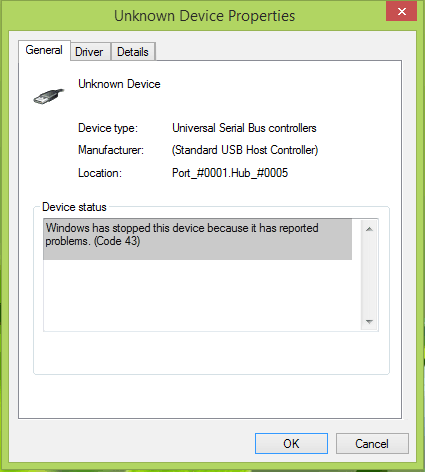
The following troubleshooting guide Provides instructions on how to Repair Code 43 error messages which the Windows Device Manager can display.
The error message that you may see in the Device Manager reads Windows has stopped this device because it has reported problems (code 43).
Fundamentally, What it says is that Windows has ceased the apparatus, and device can be pretty much anything. For instance that a Nvidia graphics card, or an USB device like a printer, external hard disk drive, or media players.
The Error happens on all recent versions of the Microsoft Windows operating System such as on Windows XP, Windows 7, Windows 8.1 and Windows 10.
What is Error Code 43
A majority of Windows users are confused about various error codes in Device Manager in Windows. As for code 43 error, it’s one of the Device Manager error codes which means “Windows has stopped this device because it has reported problems. (Code 43)”. When you get this error with your USB or other hardware devices, it probably tells you that a device driver notified the operating system that the device has failed. This situation can also occur if the device hardware failed or if the device driver failed.
To fix this problem, follow steps below:
Fix 1. Solve Error Code 43 by Fixing the Device Driver
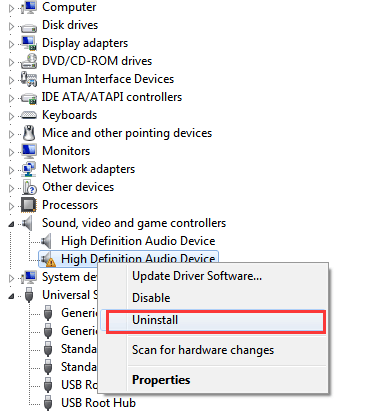
1. In Device Manager, right-click on the problem device and click Uninstall. This is to uninstall the driver. (Here take steps in Windows 7 as reference which apply to Windows 10, 8, 8.1, XP & Vista.)
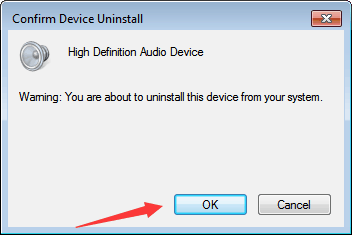
2. A dialog box may pop up asking you to confirm the installation. Click OK then Device Manager will uninstall the device.
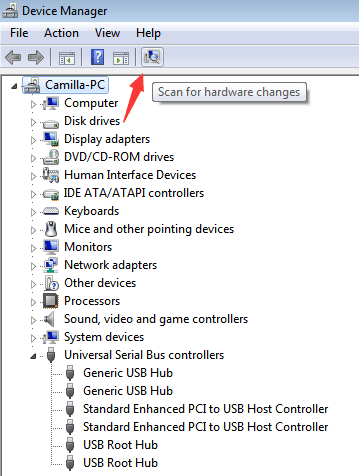
3. After uninstalling the driver, in Device Manager, click Scan for hardware changes in menu at the top of the Window. Then Device Manager will scan your system and automatically reinstall the device.
The steps above should resolve the problem, but if they don’t, or you’re not confident playing around with drivers manually, you can do it automatically.
Fix 2. Update the Device Driver
Try to install the latest drivers for your USB drive. It’s very likely that installing the latest drivers for the device will remove code 43 error.
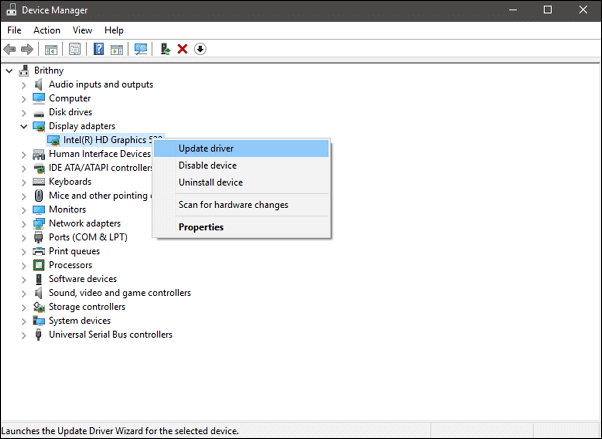
Step 1. Go to “Search”, type device manager, and choose “Device Manager” from the result. Then it opens with your computer name at the top and a list of devices that are installed on your computer beneath your computer name.
Step 2. Find and right-click the problematic device and choose “Properties”.
Step 3. Click “Driver” and then choose “Update Driver”.
Step 4. Click “Search automatically for updated driver software”.
Fix 3: Power Management
If you use a laptop, or any power plan but high performance, the save power feature may be responsible for devices throwing the error code 43.
Open the Device Manager once more, and locate the USB Root Hub components under Universal Serial Bus controllers there.
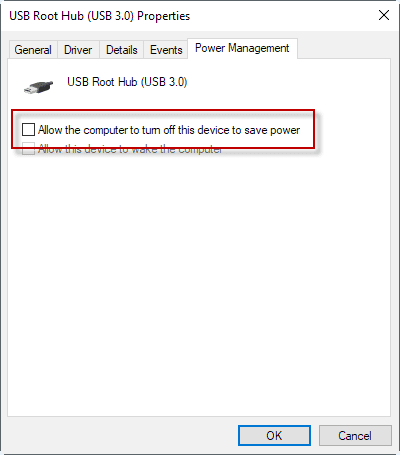
Double-click on the first USB Root Hub device listed there, and select properties from the options. Switch to the power management tab when the new window opens, and remove the checkmark from “allow the computer to turn off this device to save power”.
Click on ok to finalize the process, and repeat it for any other USB Root Hub device listed.
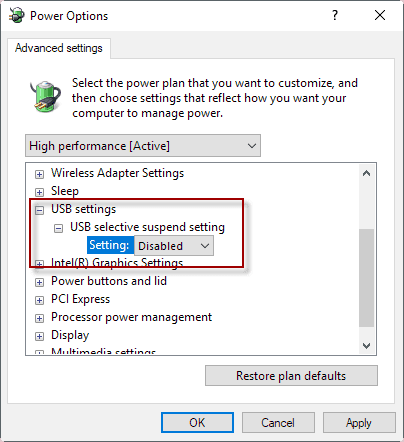
The second power management feature that you may want to check is found in the Power Options.
- Tap on the Windows-key, type powercfg.cpl and hit the Enter-key. This opens the Power Options on Window PCs.
- Find the power plan that is active, and click on the “change plan settings” link next to it.
- On the next page, select “change advanced power settings“.
- Navigate to USB Settings > USB selective suspend setting in the Power Options window that opens, and switch the settings to disabled (you may see two, on battery, and plugged in).
- Click on apply to complete the process.
Fix 4: Microsoft Fix-It to diagnose and fix Windows USB problems
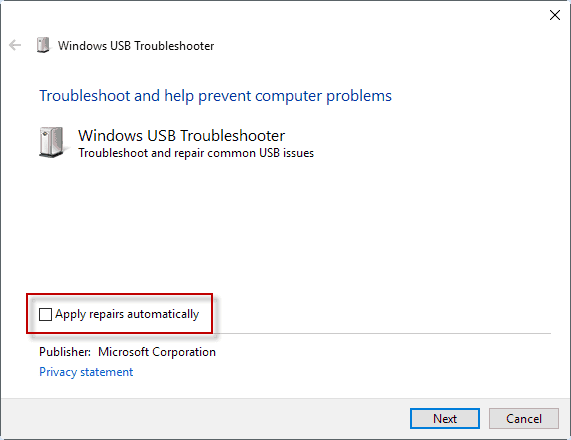
Microsoft released a Fix It solution, a one-click solution, to troubleshoot USB related problems on Windows.
To use it, download the program from Microsoft’s website to the local PC, and run it afterwards.
Make sure you click on advanced on the first screen that opens, and remove the checkmark from “apply repairs automatically”. If you don’t do that, fixes are applied automatically without you having any say in the matter.
By removing the checkmark, all fixes are listed, and it is up to you to run them or not. This gives you greater control over the process.
The Windows USB Troubleshooter fixes the following issues:
- Your USB class filter was not recognized.
- Your USB device is not recognized.
- USB printer device is not printing.
- USB storage device cannot be ejected.
- Windows Update is configured to never update drivers.
Fix 5: Unplug, plug in the device
If the device is an external one, for instance a printer, Bluetooth dongle, or webcam, you may be able to resolve the issue by unplugging it from the Windows PC, and plugging it back in.
You may also try another USB port if one is available while you are at it. This resolved the issue for a user on Ten Forums who bought a USB Bluetooth Dongle only to find out that it was throwing error code 43.
Some USB devices may require more power than they are getting. Plugging them into a different port may resolve the issue.
Reboot your PC:
If you uninstalled the old driver and installed the correct new driver, it should fix the communication problem between Windows and your hardware device, eliminating the error 43 message. If not, you might want to install the faulty device on another PC and see if it works correctly.
If you continue to experience problems then most likely the device itself is damaged and needs to be replaced.