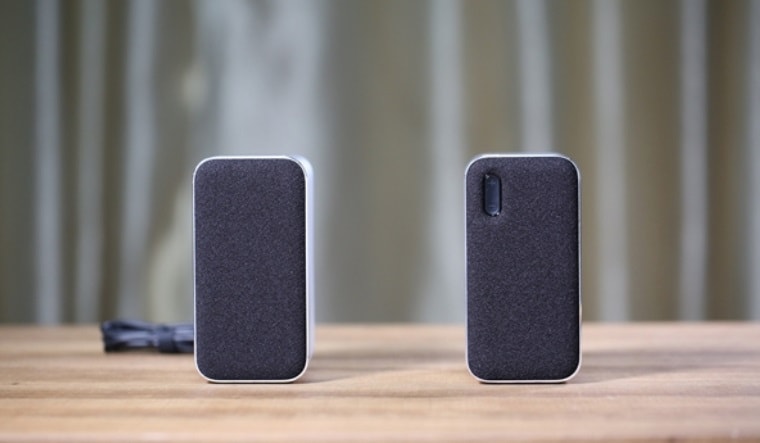
Having a good Bluetooth speaker is always an investment. They help in refreshing the mood and for entertainment purposes. However, the only important step is to connect it to the device that you are using. Bluetooth speakers are generally easy to connect to a smartphone. But, when it comes to connecting the Bluetooth speaker to a PC or a laptop, it can be a little tricky. However, if the steps are followed properly, it becomes quite easy to connect it to a PC or a laptop.
Steps to Connect Bluetooth Speaker to Laptop
Connecting a Bluetooth speaker to a laptop is very easy and can be done in no time if the steps are followed correctly and in proper sequence. Since most of us use a laptop these days, therefore it is very important to understand and learn how to connect a Bluetooth speaker to a laptop. JBL Go 2 Portable Waterproof Bluetooth Speaker with mic is one of the best Bluetooth speakers in the market.
The steps to connect it to a laptop are as follows:
- Turn on the Bluetooth in Your Laptop
The most basic step is to first switch on the Bluetooth setting in your laptop. To do this, open settings, select “Devices” option and then click on the “Bluetooth” submenu. If the “Bluetooth” setting is “Off”, turn it to “On” to activate the Bluetooth feature.
- Put Your Bluetooth Speaker in Pairing Mode
In order to make the Bluetooth speaker available in your laptop, you need to pair the speaker with your device. To do so, read the instruction manual provided with your Bluetooth speaker. However, in most cases the pairing option can be turned on by pressing a button on the speaker for 5 times to pair it.
- Connect the Bluetooth Speaker to the Device
After the Bluetooth speaker is paired, it would be visible on your laptop screen with the message “Ready to Pair”. Select the option “Pair” to finally connect the speaker to the device. Once connected, you will be able to listen to the sound of your device on your Bluetooth speaker.
Steps to Connect Bluetooth Speaker To PC
The steps to connect a Bluetooth speaker to a PC is mostly similar to the steps followed to connect it to a laptop. JBL Clip 3 Ultra-Portable Wireless Bluetooth Speaker with Mic is also one of the best Bluetooth speakers because of its seamless and wireless Bluetooth connectivity.
To connect it to a PC, follow the steps below.
- Open the Bluetooth settings in your PC, click on Devices and then select “Bluetooth” option. Switch the feature from OFF to ON.
- Pair the Bluetooth device to your PC by following the steps in the instruction manual
- Connect the Bluetooth speaker to the device by choosing the “Ready to Pair” option alongside the speaker’s name and pairing it with your PC. This will connect your Bluetooth speaker to your PC and you can listen to the music without any hassle.
No Audio Even after Connecting the Speaker to the Device?
Even after successfully connecting the device with your laptop or PC, sometimes we are unable to listen to the sound on the speaker. When such a situation arises, you need to open Windows Audio option on the device by right-clicking on the speaker icon on the taskbar, select “Sounds” option and choose the “Speakers” option to solve the problem.
Removing a Bluetooth Speaker from the Laptop or PC
To remove a Bluetooth speaker, select the device from the Bluetooth menu in the settings and click on the “Remove Device”. This will disconnect and remove the speaker from the device until you pair it again. Visit the website for more blogs on solving issues regarding Bluetooth speakers.
Conclusion
Follow these easy steps to connect your Bluetooth speaker to your laptop and PC. For more blogs on it, you can also check the website to make it a hassle-free experience for you.