
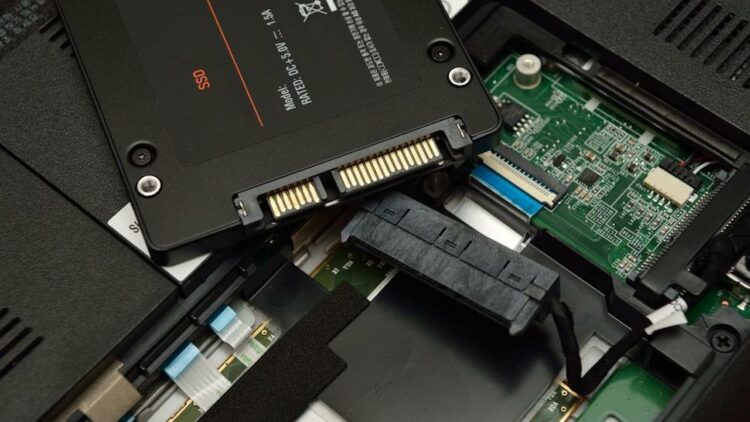
Is your computer taking forever to boot up? Are you seeing the “100% Disk Usage” error in Task Manager? These are classic signs that your mechanical Hard Disk Drive (HDD) is bottlenecking your system.
Upgrading to a Solid State Drive (SSD) is the single most effective way to breathe new life into an old PC. However, the prospect of reinstalling Windows 10, re-downloading gigabytes of software, and losing your personalized settings can be daunting.
In this guide, we will show you how to transfer Windows 10 from HDD to SSD without losing a single file using the industry-leading tool, EaseUS Disk Copy.
Why You Should Migrate Windows 10 to SSD
Before we dive into the “how,” let’s look at the “why.” Moving your OS to an SSD provides:
- Instant Boot Times: Reduce startup from minutes to seconds.
- Faster App Launches: Software like Photoshop or Chrome opens almost instantly.
- Silence and Durability: No moving parts means no noise and better resistance to physical drops.
- System Responsiveness: No more freezing during background Windows updates.
Preparation: What You Need Before You Start
To ensure a smooth migration, prepare the following:
- A New SSD: Ensure the capacity is large enough to hold the data currently on your HDD’s C: drive.
- Connection Cable: A SATA-to-USB adapter (for laptops) or a spare SATA/M.2 cable (for desktops).
- Data Backup: While cloning is safe, it is always a “best practice” to back up your most critical files to a cloud service or external drive.
- A Professional Cloning Tool: We highly recommend EaseUS Disk Copy.
Why Choose EaseUS Disk Copy for System Migration?
While there are many “free” tools available, many fail when dealing with different partition styles or hidden boot sectors. EaseUS Disk Copy is the preferred choice for both pros and beginners because:
- Sector-by-Sector Cloning: It ensures the target SSD is an exact 1:1 replica of your HDD.
- Safe System Migration: It specifically identifies the OS partition and handles the boot configuration automatically.
- SSD Optimization: It features a built-in “4K Alignment” option to ensure your SSD performs at its maximum theoretical speed.
- Resizes Partitions: If your new SSD is smaller or larger than the old HDD, the software can automatically adjust the partition layout for you.
Step-by-Step: Moving Windows 10 to SSD
Step 1: Connect the SSD to Your Computer
Plug in your new SSD. If it’s a new drive, you may need to “Initialize” it in Windows Disk Management (though EaseUS Disk Copy can often handle this for you).
Step 2: Launch EaseUS Disk Copy
Download and install EaseUS Disk Copy. Open the program and select “Disk Mode” to clone the entire drive, or “Partition Mode” if you only want to move specific volumes.
Step 3: Select Source and Target
- Select Source: Choose your current HDD where Windows 10 is installed.
- Select Destination: Choose your new SSD. A warning will appear stating that data on the destination will be erased—click “OK.”
Step 4: Optimize for SSD
On the preview screen, make sure to check the box: “Check the option if the target is SSD.” This is crucial for 4K alignment, which preserves the lifespan and speed of your new drive.
Step 5: Execute and Wait
Click “Proceed.” The software will begin the cloning process. This may take anywhere from 20 minutes to an hour depending on the amount of data.
The Final Step: Booting from the New SSD
Once the clone is finished, your data is on the SSD, but your computer still thinks it should boot from the old HDD.
- Restart your PC and repeatedly tap the BIOS key (usually F2, F12, or Del).
- Navigate to the Boot Priority section.
- Move the New SSD to the #1 position.
- Save and Exit.
Success! Your Windows 10 should now load in seconds. Once you are sure everything is working perfectly, you can format the old HDD and use it as an extra storage drive for movies and photos.
Frequently Asked Questions (FAQ)
Q: Do I need to buy a new Windows license? A: No. Because you are cloning the existing system to the same hardware, Windows 10 will remain activated automatically.
Q: What if my SSD is smaller than my HDD? A: EaseUS Disk Copy supports “cloning used space only.” As long as the data on your HDD is less than the total capacity of the SSD, the migration will work perfectly.
Q: Will my games and apps still work? A: Yes. Everything—including your browser history, desktop icons, and game saves—will be exactly where you left them.