

Murphy’s law – “Anything that can go wrong will go wrong” can most aptly be applied to computers. Most of us are comfortable using computers as long as everything is working smoothly. You may be in a state of panic when your computer crashes. There are lots of things that can go wrong with your computer – a complete breakdown, viruses that render it useless or super slow, out of memory. Whatever the reason, you may worry that it is broken forever and all your data is lost.
Don’t panic too much though, as there are a few things you can do after the crash to try and right things again. Here are 5 easy ways to deal with your computer crash –
1. Try rebooting the computer
Okay, the computer crashed but don’t go start hyperventilating just yet. Take a deep breath and try the simplest method – rebooting your computer. Just cut the power for the computer from the power source by pulling the plug, wait for a few seconds and then turn the computer back on.

In most cases, if the computer has run out of battery or is overheated, this simple trick of restating the computer is super effective. If this solution works, just save all your work and proceed with caution by giving your computer breaks. Afterall, everyone needs them once in a while!
2. Work in Safe Mode
Safe mode is a diagnostic boot mode of an operating system (OS) and may also refer to a mode of operation by an application software. It is intended to help fix most, if not all problems within your computer.
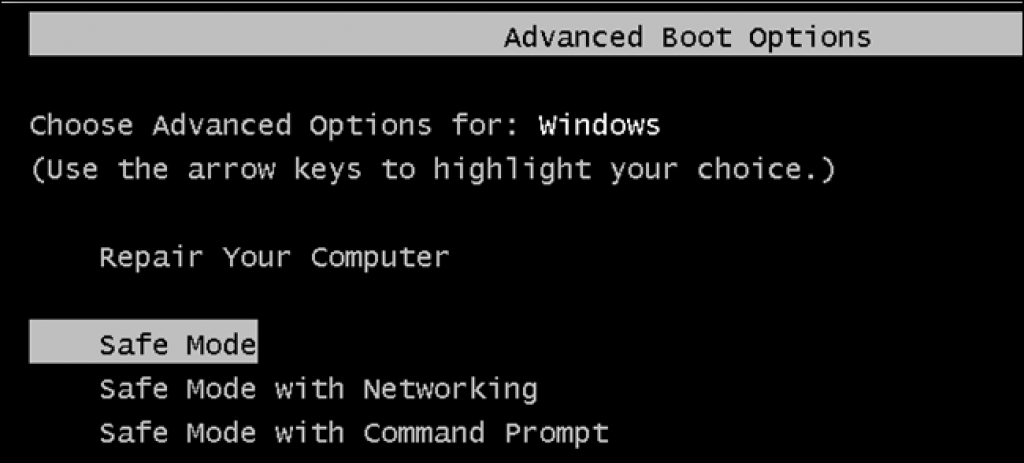
Safe Mode is available for both Windows and MAC OSes. This Mode loads the operating system with minimal options and may also be useful for removing rogue security softwares.
What it does is open the computer with loading external or installed drivers.
To access it on a Windows –
- Restart the computer.
- Press F8 key and go to the Boot Menu.
- Choose Safe Mode from Windows Advanced Options.
To access it on a Mac –
- Restart the computer.
- Press and hold Shift key until Apple icon appears. You are in safe mode.
3. Use System Restore while in Safe Mode
This built-in feature, available only for Windows can be a life saver. System Restore saves previous versions of your computer history, when various events happen on your system. This option may work provided that you have been allowing System Restore to save versions of your registry. You can reload one of these saves and get your computer working again.
Guide to access System Restore –
- Open Start menu. Navigate to Control Panel → System and Security.
- Open System Restore and select most recent restore points of your computer
Though let’s be honest, this method may not get all your data restored if the last restore was not today. You may end up losing a lot of data. And the added disadvantage of no availability to Mac users.
4. Use “Last Known Good Configuration”
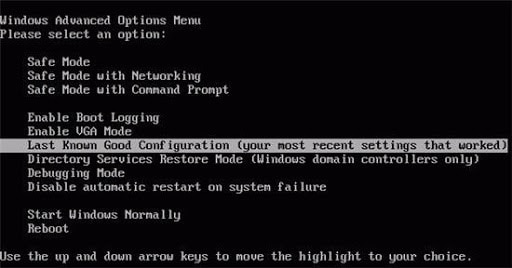
Another option in the Advanced Boot menu, this boots the Windows Registry and drivers from the last successful start of Windows. This is a safe second choice and usually results in almost no damage to software and drivers. But keep in mind, if you didn’t save your work before the computer crashed, that data will definitely be lost.
5. Use data recovery software
Tried every solution in the book? Well, don’t give up just yet. There are many data recovery software available in the market. Try using data recovery and backup softwares that will get your computer working properly in a jiffy. These are the safest and cheapest way to ensure your computer’s safety as well as confidentiality.

What these softwares do basically is load your entire system’s backup as a fully functioning computer, exactly the same as the day the backup was created. These softwares can resurrect any computer back from the dead. This is a good lesson for future mistakes that you can avoid by just making sure that you have a reliable recovery software.
Lastly, to make sure, it doesn’t happen again, make sure to have a proper backup system at place. Check here how to backup the entire computer to external drive, automatically and easily.
Don’t forget to take good care of your computer and continuously updated outdated hardware and drivers to get you the best usage out of it. Being careful will definitely save you headache in the long run and prevent any unwanted computer blackouts. The 5 ways mentioned are the best solutions that you will find for fixing your computer without shelling out big bucks.